Trackballs can make Mac navigation more comfortable by reducing the desk space and arm movement required compared with a conventional mouse. The right model can also provide smoother cursor control, programmable buttons, and a more relaxed hand position.
We selected 10 trackballs for Mac covering thumb-operated and finger-operated designs, wired and wireless connections, multiple hand sizes, and different budgets. Use the guide below to narrow your choices before comparing the individual products.
Best 10 Trackballs for Mac Picks for 2026
Best Premium Ergonomic Pick

- 20-degree ergonomic tilt with contoured thumb control
- Bluetooth and Logi Bolt wireless connectivity
- Rechargeable battery with up to 120 days of use
Best For: Premium Mac desk setups and extended work sessions
Best Large Wired Trackball
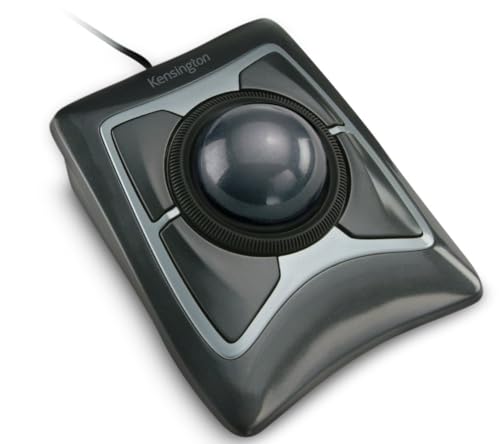
- Large 55mm ball for precise cursor control
- Scroll ring for easy page navigation
- Ambidextrous design with detachable wrist rest
Best For: Stationary Mac workstations with USB-A connectivity
Best Value Wireless Pick

- Space-saving thumb-controlled tracking
- Bluetooth and included Logi Bolt receiver
- Up to 18 months from one AA battery
Best For: Everyday wireless Mac use and compact desks
Best Ambidextrous Budget Option

- Ambidextrous shape for shared use
- Scroll ring for quick document navigation
- Detachable wrist rest and adjustable software controls
Best For: Simple wired Mac setups and left-handed users
Most Versatile Wireless Pick
Nulea Tilt-Stand Thumb Trackball
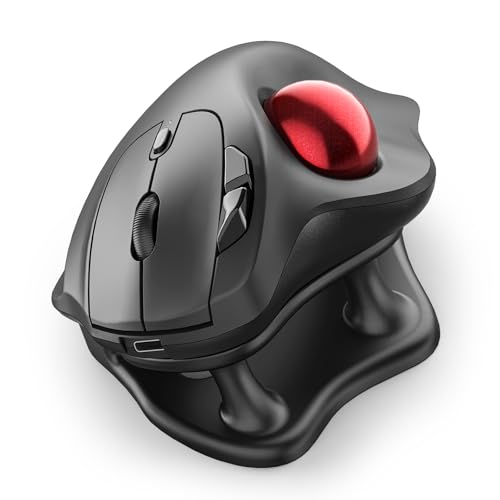
- Bluetooth and USB receiver connectivity
- 21.7° tilt stand with silent operation
- Four DPI levels and three-device switching
Best For: Quiet, flexible Mac workstations
Best Ambidextrous Wired Value
Kensington Orbit with Scroll Ring

- Precise optical tracking with a 40mm ball
- Dedicated scroll ring for documents and pages
- Ambidextrous body with detachable wrist rest
Best For: Simple, comfortable wired Mac setups
Best for Long Work Sessions

- Sculpted thumb-control ergonomic design
- Bluetooth or Logi Bolt wireless connection
- Up to 18 months of AA battery life
Best For: Right-handed all-day Mac productivity
Large-Hand Wired Pick

- Large-hand, hand-conforming design
- Five DPI levels for precise control
- Mac-compatible wired USB connection
Best For: Large-handed Mac users doing office or design work
Ambidextrous Wireless Classic

- Large 55mm ball with optical tracking
- Bluetooth and 2.4GHz wireless options
- Detachable wrist rest and scroll ring
Best For: Mac users wanting a full-size ambidextrous wireless model
Best Premium Ergonomic Pick – Logitech MX Ergo S
If you want a refined option among trackballs for Mac, the Logitech MX Ergo S combines thumb-controlled precision with a rechargeable wireless design. Its 20-degree tilt, quiet clicks, customizable controls, and Bluetooth or Logi Bolt connectivity make it well suited to demanding desk setups.
Best For: Mac users seeking premium ergonomics, wireless flexibility, and extensive customization.
Pros:
- 20-degree tilt and contoured grip support a more comfortable forearm posture.
- Switch between speed and high-precision tracking with a dedicated button.
- Bluetooth and included Logi Bolt receiver provide dual wireless connectivity.
- USB-C charging offers up to 120 days of use on a full charge.
Cons:
- Designed for right-handed users and medium- to large-sized hands.
- Charging cable is not included.
- Requires macOS 14 Sonoma or later according to the supplied specifications.
The MX Ergo S is a strong premium choice when comfort and control matter more than a compact footprint. Its rechargeable battery and programmable buttons add practical value for long work sessions.
Best Large Wired Trackball – Kensington Expert Trackball
Kensington Expert Trackball Mouse (K64325), Black Silver, 5"W x 5-3/4"D x 2-1/2"H
Check Price On AmazonThe Kensington Expert Trackball is a practical wired choice among trackballs for Mac, especially if you prefer a large ball and steady USB-A connectivity. Its 55mm ball, optical tracking, scroll ring, and detachable wrist rest emphasize precise navigation and comfortable everyday use.
Best For: Users who want a large, ambidextrous wired trackball with a dedicated scroll ring.
Pros:
- Large 55mm ball provides precise cursor control.
- Patented scroll ring makes navigating pages and documents convenient.
- Ambidextrous shape works for both right- and left-handed users.
- Detachable wrist rest supports the hand and wrist.
Cons:
- Wired USB-A connection may be less convenient for newer Macs without USB-A ports.
- Customization through KensingtonKonnect is limited on ChromeOS and does not support Windows ARM-based computers.
- The supplied details list three buttons despite the product being described as a customizable four-button design.
This model favors dependable wired operation and a spacious control surface over portability. It is a sensible fit for a stationary Mac workstation with USB-A access.
Best Value Wireless Pick – Logitech ERGO M575S
The Logitech ERGO M575S offers a comfortable, space-saving approach to trackballs for Mac. Its thumb-controlled ball keeps the hand mostly stationary, while Bluetooth or the included Logi Bolt receiver provides flexible wireless connection and the AA battery lasts up to 18 months.
Best For: Mac users who want comfortable wireless control in a compact or space-conscious setup.
Pros:
- Sculpted ergonomic shape supports a relaxed hand and improved forearm posture.
- Thumb control lets you move the cursor without moving the whole hand.
- Bluetooth and Logi Bolt support flexible wireless connections.
- Included AA battery provides up to 18 months of battery life.
Cons:
- Right-handed design is less suitable for left-handed users.
- Provides fewer customizable controls than the MX Ergo S.
- Uses a replaceable AA battery rather than rechargeable USB-C power.
The M575S is a well-balanced option for everyday Mac productivity, particularly where desk space is limited. It delivers the core ergonomic benefits of a thumb trackball without the higher-end feature set of Logitech’s premium model.
Best Ambidextrous Budget Option – Kensington Orbit Trackball
The Kensington Orbit Trackball is a straightforward wired option for trackballs for Mac, pairing optical tracking with a distinctive scroll ring. Its ambidextrous shape, detachable wrist rest, and software-adjustable buttons make it suitable for shared workstations and everyday navigation.
Best For: Left- or right-handed Mac users who prefer simple wired control and easy scrolling.
Pros:
- Ambidextrous design accommodates both left- and right-handed users.
- Scroll ring simplifies movement through webpages and documents.
- Detachable wrist rest supports the hand during extended use.
- Software allows button assignments and cursor or scrolling speed adjustments.
Cons:
- Wired USB connection may require an adapter on some Macs.
- Only two programmable buttons are provided.
- Customization requires Kensington’s downloadable software.
This Orbit model is a practical choice when ambidextrous ergonomics and scrolling convenience are priorities. Its wired design keeps setup simple, though users with USB-C-only Macs may need a suitable adapter.
Most Versatile Wireless Pick – Nulea Tilt-Stand Thumb Trackball
For shoppers comparing trackballs for Mac, the Nulea M511 stands out for flexible connectivity and a comfort-focused design. Its thumb-controlled ball, 21.7° tilt stand, silent operation, and four DPI settings suit extended desk work, multitasking, and shared spaces.
Best For: Mac users who want a quiet, rechargeable wireless trackball with Bluetooth and multi-device switching.
Pros:
- Connects through Bluetooth or the included USB receiver and supports up to three devices.
- 21.7° tilt stand and thumb control encourage a more natural wrist and hand position.
- Silent trackball, buttons, and scroll wheel are useful in offices or late-night workspaces.
- Four DPI levels and six buttons support varied cursor speeds and productivity shortcuts.
Cons:
- Designed for right-handed use.
- Buttons are not programmable.
- Supplied compatibility notes specify macOS 14 Sonoma or later.
The Nulea is a strong all-around choice when wireless flexibility matters. It offers more connectivity and adjustment options than a basic wired model, though users seeking extensive button customization should look elsewhere.
Best Ambidextrous Wired Value – Kensington Orbit with Scroll Ring
The Kensington Orbit is a straightforward wired option for anyone seeking trackballs for Mac without battery management. Its 40mm optical-tracking ball, dedicated scroll ring, ambidextrous shape, and detachable wrist rest emphasize controlled navigation and comfortable everyday use.
Best For: Right- or left-handed Mac users who prefer a dependable USB trackball with easy scrolling.
Pros:
- Optical tracking and a 40mm spherical ball provide precise cursor control.
- Dedicated scroll ring makes moving through documents and web pages convenient.
- Ambidextrous design accommodates both hand orientations.
- Detachable wrist rest supports the hand during longer sessions.
Cons:
- Wired USB operation limits desk flexibility.
- Only two buttons are provided.
- Customization through Kensington software is not available on ChromeOS, though this does not affect its listed macOS use.
This Orbit model is a practical pick for users who value simplicity, scrolling, and ambidextrous ergonomics over wireless features. Its limited button count may be less suitable for shortcut-heavy workflows.
Best for Long Work Sessions – Logitech ERGO M575S
The Logitech ERGO M575S is a polished choice among trackballs for Mac, combining a sculpted thumb-control layout with Bluetooth or Logi Bolt connectivity. Its quiet clicks, ergonomic posture support, customizable controls, and long AA battery life make it well suited to all-day office use.
Best For: Right-handed Mac users who want an ergonomic wireless trackball for long work sessions and compact desks.
Pros:
- Sculpted shape supports the hand and reduces the need for arm movement.
- Bluetooth and included Logi Bolt receiver provide flexible wireless connection options.
- Up to 18 months of battery life from one included AA battery.
- Logi Options+ supports cursor-speed adjustments, customizable controls, and Smart Actions.
Cons:
- Designed for right-handed users.
- Its listed details specify two buttons, while software features are described separately as three customizable controls.
- Wireless operation requires an AA battery.
The M575S is especially compelling for users prioritizing comfort, quiet operation, and low-maintenance wireless performance. It is less suitable for left-handed users or anyone who prefers a rechargeable mouse.
Large-Hand Wired Pick – Ergonomic 44mm Trackball
For shoppers comparing trackballs for Mac, this wired model prioritizes a roomy, hand-conforming shape and precise finger control. Its 44mm ball, five DPI levels, and USB connection make it a practical choice for office work, design tasks, and general navigation, though some Mac button functions are limited.
Best For: Mac users with larger hands who want a corded trackball for desk work, browsing, or design.
Pros:
- Large-hand ergonomic design helps reduce wrist and muscle strain.
- 44mm finger-operated ball works on virtually any surface.
- Five customizable DPI levels support more precise cursor control.
- Plug-and-play USB-A connectivity requires no drivers.
Cons:
- Forward and backward buttons are not supported on Mac systems.
- Wired design limits flexibility compared with wireless alternatives.
- Not recommended for gaming.
This is a sensible productivity-focused option if comfort, precise positioning, and a large trackball matter more than wireless convenience or gaming performance.
Ambidextrous Wireless Classic – Kensington Expert Trackball
The Kensington Expert is a strong contender among trackballs for Mac if you want a large ball, wireless connectivity, and support for either hand. Its 55mm ball, scroll ring, detachable wrist rest, and configurable controls make it especially suited to comfortable desk-based navigation.
Best For: Mac users who want an ambidextrous wireless trackball with a large ball and wrist support.
Pros:
- Large 55mm ball and Diamond Eye optical tracking support precise movement.
- Ambidextrous design accommodates left- and right-handed use.
- Patented scroll ring makes long-page navigation convenient.
- Works through Bluetooth LE or the included 2.4GHz USB dongle.
Cons:
- Requires two AA batteries.
- Linux is not supported.
- Control customization requires Kensington Konnect software, which does not support Windows ARM-based computers.
Choose this model for a traditional, full-size trackball experience with flexible wireless connection options. It is particularly appealing if shared use or wrist comfort is important.
Adjustable Thumb-Control Choice – ProtoArc EM01 NL Trackball
For trackballs for Mac that suit compact or flexible workspaces, the ProtoArc EM01 NL combines thumb control with an adjustable 0–20° hinge. It supports Bluetooth and 2.4GHz wireless connections, pairs with up to three devices, and uses a rechargeable battery for convenient everyday work.
Best For: Mac users who switch between devices and prefer an adjustable thumb-operated trackball for quiet, space-saving navigation.
Pros:
- Adjustable 0–20° angle helps tailor the grip to your hand position.
- Bluetooth and 2.4GHz modes support up to three connected devices.
- Rechargeable battery avoids disposable battery changes.
- Five DPI settings range from 200 to 1600 for different tasks.
Cons:
- Right-handed design is not ambidextrous.
- Scroll wheel and side buttons are not silent.
- The ball and three white rollers need periodic cleaning to maintain smooth tracking.
This is a versatile pick for MacBook, desktop, and tablet users who value device switching and adjustable ergonomics. Expect a short adaptation period, as thumb-controlled trackballs feel different from conventional mice.
How We Picked the Best Trackballs for Mac
We focused on the features that matter most for everyday macOS use: connection compatibility, cursor control, comfort, button layout, scrolling, power options, and build quality. The selection includes Bluetooth and USB wireless models, wired alternatives, and designs with either a thumb ball or a larger finger-operated ball.
Because comfort is highly personal, we also considered hand size, tilt angles, palm support, and whether a design minimizes wrist or arm movement. Models with scroll rings, rechargeable batteries, adjustable controls, or broad device compatibility received extra consideration where those features improve daily use.
Quick Comparison
| Type | Best For | What to Look For |
|---|---|---|
| Thumb-operated | Users who want a familiar mouse shape | Comfortable thumb reach, responsive ball, programmable buttons |
| Finger-operated | Precise control and reduced thumb strain | Large ball, palm support, scroll ring, stable base |
| Wireless | Clean desks and flexible positioning | Bluetooth or receiver support, battery life, charging method |
| Wired | Simple plug-and-play reliability | Cable length, macOS compatibility, desk placement |
Key Buying Factors for Trackballs for Mac
Connection and MacOS Support
Bluetooth is convenient for MacBooks and desktops with limited USB ports, while a USB receiver can provide a reliable connection with minimal setup. Check whether the included receiver requires an adapter and whether advanced button customization requires companion software.
Trackball Position and Hand Comfort
Thumb-operated models typically feel closer to a traditional mouse and may be easier to learn. Finger-operated models place control on a larger central ball, which can suit users seeking precision or wanting to reduce repetitive thumb motion. Look for a broad palm rest and a stable base if you use the device for long sessions.
Scrolling, Buttons, and Customization
A dedicated scroll wheel or ring is important for documents and web pages. Extra buttons can speed up shortcuts, Mission Control, copy-and-paste actions, or app-specific commands, but verify that the controls can be configured on macOS.
Power and Portability
Rechargeable models avoid disposable batteries but need periodic charging. Battery-powered options may last longer between changes and can be useful as travel backups. Consider the device’s size and whether its shape fits your laptop bag.
Who Should Buy Which Trackballs for Mac?
- Choose a thumb-operated model if you want an easy transition from a standard mouse and a compact ergonomic shape.
- Choose a finger-operated model if precision, palm support, or reduced thumb movement is your priority.
- Choose a wireless model for a cleaner workspace, especially with a MacBook or multi-device setup.
- Choose a wired model if you prefer dependable plug-and-play operation and do not need portability.
- Choose a tilt stand or angled design if a flatter mouse causes wrist discomfort, but confirm that the angle feels natural for your grip.
Before buying, check the dimensions against your hand and desk, confirm the connection method works with your Mac, and prioritize the control layout you can use comfortably for hours.