If you need a simple way to clone drives on a Windows PC, the right duplicator can save time and reduce setup headaches. These tools are built for fast copying, offline cloning, and easy drive swaps.
Below, we focus on models that fit common Windows workflows, from single-drive transfers to multi-bay docks and higher-capacity SSD/HDD support.
Best 10 Hard Drive Duplicators for Windows Picks for 2026
Dual-Bay Offline Cloner
SABRENT USB 3.0 Dual Bay Docking Station & Cloner
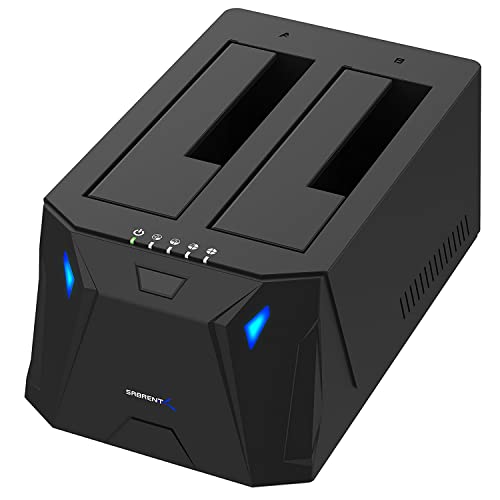
- Supports 2.5"/3.5" SATA HDDs and SSDs
- Offline clone mode works without a computer
- USB 3.0 plug-and-play with no drivers
Best For: Windows users who want a simple dual-bay dock with offline cloning
Image-Manager Duplicator
StarTech 1:1 SATA Duplicator with Image Manager

- Standalone 1:1 duplicator with image library manager
- Four copy modes including sector-by-sector
- Supports 2.5"/3.5" SATA HDDs and SSDs
Best For: IT professionals and system builders who need drive cloning plus image library management
Versatile Dual-Bay Cloner
ORICO Dual Bay Hard Drive Docking Station Cloner

- Offline clone function without a PC
- Windows, Mac, Linux, iPad OS, and Android support
- USB 3.0 with UASP and Trim up to 5Gbps
Best For: Users who want a dual-bay cloner with wide device and OS compatibility
Duplicator and Wiper
StarTech 1:1 SATA Duplicator Eraser

- Standalone cloner and eraser for SATA drives
- Three copy modes and four erase modes
- Supports 2.5"/3.5" SATA HDDs and SSDs
Best For: IT teams that need both cloning and secure drive erasure in one standalone tool
Offline Clone Dock
UGREEN Dual-Bay SATA Dock for Windows

- Offline cloning works without a computer
- Supports two 2.5-inch/3.5-inch SATA drives
- USB 3.0 transfers up to 5Gbps
Best For: Windows users needing simple no-PC drive cloning
IT Pro Duplicator
StarTech Dual-Bay SATA Clone Dock
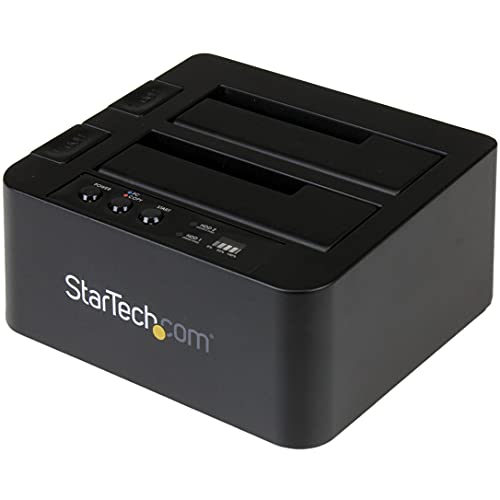
- Standalone sector-by-sector cloning with no PC
- Supports 2.5-inch/3.5-inch SATA HDDs and SSDs
- Duplication speed up to 28 GB/min
Best For: IT pros needing a fast standalone SATA duplicator
Triple-Bay Hybrid Cloner

- Offline cloning for HDD and SSD jobs
- Supports M.2 NVMe, SATA SSD, and HDDs
- USB 3.2 Gen 2x1 up to 10Gbps
Best For: Mixed-drive users wanting one compact Windows-compatible dock
Standalone 1:5 Duplicator
Systor SYS105HS-DP 1:5 HDD/SSD duplicator and eraser

- No computer or software required
- Copies multiple SATA HDDs and SSDs at 90MB/s
- Supports drive duplication and DoD 5220.22-M erasure
Best For: Standalone multi-drive copying and secure sanitization
USB-C Dual-Bay Clone Dock
WAVLINK dual-bay USB-C SATA dock with offline clone

- Works with Windows XP through 10 with no drivers
- Dual-bay dock for 2.5-inch and 3.5-inch SATA drives
- Includes offline clone function and USB-C/USB 3.0
Best For: Windows users needing a dock plus offline cloning
Standalone 1:1 Duplicator
Systor SYS101HS-DP 1:1 SATA HDD/SSD duplicator

- Standalone cloning with no computer required
- Copies data only or whole drives
- Includes DoD 5220.22-M drive erasure
Best For: Simple one-to-one SATA drive duplication
Dual-Bay Offline Cloner – SABRENT USB 3.0 Dual Bay Docking Station & Cloner
If you want hard drive duplicators for windows that also work as a simple dock, the SABRENT EC-HD2B keeps the process straightforward. It supports 2.5″ and 3.5″ SATA HDDs or SSDs, works plug and play with no drivers, and can clone drives offline without tying up a PC.
Best For: Windows users who want a simple dual-bay dock with offline cloning and broad SATA drive support.
Pros:
- Supports standard 2.5″/3.5″ SATA HDDs and SSDs.
- Offline cloning lets you duplicate without connecting to a computer.
- USB 3.0 connection supports transfer speeds up to 5Gbps.
- Plug-and-play setup with no drivers needed.
Cons:
- Offline cloning speed is listed up to 60Mbps, so it is not the fastest option.
- It is a docking station first, so it is less specialized than dedicated duplicators.
For basic duplication jobs and everyday drive access, this is a practical choice that balances convenience with compatibility. It is especially appealing if you want one unit for both cloning and normal SATA drive use.
Image-Manager Duplicator – StarTech 1:1 SATA Duplicator with Image Manager
Among hard drive duplicators for windows workflows, this StarTech model is built for admins who need imaging as much as cloning. It offers a standalone 1:1 SATA duplicator with an image library manager, so you can back up, restore, and deploy system images without connecting to a computer.
Best For: IT professionals and system builders who need drive cloning plus image library management.
Pros:
- Built-in image library manager supports backup and restore workflows.
- Four duplication modes, including sector-by-sector copy.
- Up to 6 GB/min copy speed with SATA III support.
- Supports 2.5″/3.5″ SATA HDDs and SSDs of any capacity.
Cons:
- Designed mainly for professional use rather than casual home duplication.
- Only supports one source and one target drive at a time.
If you need a duplicator that goes beyond basic copying, this is the most deployment-focused option in the group. The library manager and multiple copy modes make it a strong fit for repeatable imaging tasks.
Versatile Dual-Bay Cloner – ORICO Dual Bay Hard Drive Docking Station Cloner
If you are comparing hard drive duplicators for windows and want one that also plays nicely with other platforms, the ORICO dual-bay dock is an easy option to consider. It supports offline cloning, UASP over USB 3.0, and broad device compatibility for fast drive access, backup, or transfer work.
Best For: Users who want a dual-bay cloner with wide device and OS compatibility.
Pros:
- Supports offline cloning without a computer.
- Compatible with Windows, Mac, Linux, iPad OS, and Android.
- USB 3.0 with UASP and Trim support for up to 5Gbps speeds.
- Supports 2.5″/3.5″ SATA HDDs and SSDs up to 44TB total capacity.
Cons:
- Offline clone requires the target disk to be larger than the source disk.
- It powers on only when a hard drive is inserted.
This is a flexible pick if you want more than a Windows-only duplicator and value a dock that can move between systems. The combination of cloning, hot-swapping, and broad compatibility makes it a practical everyday tool.
Duplicator and Wiper – StarTech 1:1 SATA Duplicator Eraser
For hard drive duplicators for windows tasks that also include drive sanitizing, this StarTech unit is a strong all-in-one choice. It works as a standalone 1:1 cloner and eraser, so you can duplicate, recover, restore, or securely wipe SATA drives without a PC.
Best For: IT teams that need both cloning and secure drive erasure in one standalone tool.
Pros:
- Supports duplication and erasure in a single standalone device.
- Three copy modes and four erase modes, including secure erase and DoD-style overwrite.
- Up to 14 GB/min sector-by-sector copy speed.
- Works with 2.5″/3.5″ SATA HDDs and SSDs of any capacity.
Cons:
- Focused on professional workflows rather than simple home use.
- Only two drive slots, so it is a 1:1 workflow tool.
This is the most security-minded option here, especially if drive sanitation matters as much as cloning. It suits organizations that need a reliable copier and wiper in one compact unit.
Offline Clone Dock – UGREEN Dual-Bay SATA Dock for Windows
If you need hard drive duplicators for windows that can also double as a simple dock, this UGREEN dual-bay station keeps things straightforward. It supports offline cloning between two SATA drives, works with 2.5-inch and 3.5-inch SSDs/HDDs, and connects over USB 3.0 for up to 5Gbps transfers when you do want to use a PC.
Best For: Windows users who want a basic dual-bay dock with no-computer cloning and broad SATA compatibility.
Pros:
- Offline cloning mode lets you copy two drives without connecting to a computer.
- Supports simultaneous use of two SATA drives, including 2.5-inch and 3.5-inch models.
- USB 3.0 support provides up to 5Gbps for connected transfers.
- Built-in cooling, dust cover, and anti-slip pads help with protection and stability.
Cons:
- Target drive must be equal to or larger than the source drive for cloning.
- Transfer speed is limited to USB 3.0 rather than newer USB standards.
This is a practical pick if you want a no-frills duplicator dock that handles common SATA drives and supports Windows compatibility. It is especially useful when offline cloning matters more than advanced features.
IT Pro Duplicator – StarTech Dual-Bay SATA Clone Dock
For hard drive duplicators for windows that are built around fast standalone cloning, this StarTech dual-bay dock is aimed at serious drive workflows. It copies 2.5-inch and 3.5-inch SATA HDDs and SSDs sector by sector with no computer required, while also working as a USB-to-SATA dock for everyday access.
Best For: IT professionals and power users who want a standalone copier with broad SATA support and fast duplication.
Pros:
- Standalone sector-by-sector cloning works without a PC and copies the entire drive.
- Supports 2.5-inch and 3.5-inch SATA drives, including SSDs, with any capacity.
- Claims duplication speeds up to 28 GB/min.
- Tool-less, tray-less design with eject buttons makes drive handling easier.
Cons:
- Target disk must be equal to or larger than the source disk.
- IDE support requires a separate adapter.
- Best suited to SATA drives rather than mixed-format setups.
If you need a dependable Windows-friendly duplicator dock for regular cloning tasks, this model leans into pro-grade convenience and speed. The standalone operation and broad SATA compatibility make it a strong fit for drive maintenance and migration work.
Triple-Bay Hybrid Cloner – Rosewill M.2 and SATA Dock
If your hard drive duplicators for windows needs include both SSD and HDD handling, this Rosewill triple-bay dock brings more flexibility than a standard two-bay unit. It supports offline cloning, USB 3.2 Gen 2×1 speeds up to 10Gbps, and works with M.2 NVMe, SATA SSDs, and 2.5-inch/3.5-inch drives in a compact tool-free design.
Best For: Users who want a compact cloning dock for mixed M.2, SATA SSD, and HDD workflows.
Pros:
- Offline cloning lets you copy drives without a host computer.
- Supports M.2 NVMe, SATA SSD, and 2.5-inch/3.5-inch HDD use in one dock.
- USB 3.2 Gen 2×1 offers up to 10Gbps transfer speeds.
- Tool-free operation makes drive swaps quick and simple.
Cons:
- Designed for up to three devices, so it is less focused on simple two-drive duplication.
- As a compact unit, it may be less specialized than dedicated dual-bay clone docks.
This is a smart choice when you need one dock that can handle cloning and reading across several drive types. It is especially appealing if you want Windows compatibility and faster USB 3.2 performance in a small footprint.
Standalone 1:5 Duplicator – Systor SYS105HS-DP 1:5 HDD/SSD duplicator and eraser
If you need hard drive duplicators for windows-related storage workflows but do not want to rely on a PC, the Systor SYS105HS-DP is built for standalone copying and sanitizing. It handles both 2.5-inch and 3.5-inch SATA HDDs and SSDs, and it can duplicate data only or complete drives while keeping the same copy speed even as you load multiple disks.
Best For: IT teams and small shops that need a standalone 1:5 duplicator for copying or sanitizing multiple SATA drives.
Pros:
- Standalone operation requires no computer or software.
- Copies multiple drives simultaneously at up to 90MB/s.
- Supports both duplication and DoD 5220.22-M compliant sanitization.
- Works with 2.5-inch and 3.5-inch HDDs and SSDs without an adapter.
Cons:
- Large 26-pound unit is not very portable.
- Uses SATA drives only, so it is not for non-SATA media.
- Higher-capacity workflow management still depends on the source and target drive match.
Overall, this is a practical pick if you want a dedicated duplication box instead of software-based cloning on Windows. Its biggest strengths are standalone use, multi-drive support, and built-in erasure functions for secure drive handling.
USB-C Dual-Bay Clone Dock – WAVLINK dual-bay USB-C SATA dock with offline clone
For users looking at hard drive duplicators for windows who also want a versatile dock, this WAVLINK dual-bay unit combines USB 3.0 and USB-C connectivity with an offline clone function. It supports 2.5-inch and 3.5-inch SATA HDDs and SSDs, offers tool-free setup on Windows, and can also act as a normal external dock for everyday drive access.
Best For: Windows users who want a dual-bay SATA dock with offline cloning and fast USB connectivity.
Pros:
- Supports Windows from XP through 10 with no drivers needed.
- Dual-bay design works with 2.5-inch and 3.5-inch SATA drives.
- Offline cloning is built in for source-to-target disk duplication.
- USB 3.0 and USB-C connectivity plus UASP support for faster transfers.
Cons:
- Offline clone requires the target disk to be the same size or larger.
- Does not support online cloning.
- Clone speed is limited compared with dedicated high-speed duplicators.
This is a flexible choice if you want one unit for both cloning and routine drive docking on Windows. It is especially appealing when you need easy setup, broad OS support, and the convenience of a metal dual-bay enclosure.
Standalone 1:1 Duplicator – Systor SYS101HS-DP 1:1 SATA HDD/SSD duplicator
If your priority is a straightforward tool among hard drive duplicators for windows environments, the Systor SYS101HS-DP gives you a dedicated 1:1 standalone copying and erasing setup. It supports 2.5-inch and 3.5-inch SATA HDDs and SSDs, and it can clone either data only or the full drive without needing a computer or software.
Best For: Users who want a simple standalone 1:1 duplicator for SATA HDDs and SSDs.
Pros:
- Standalone design needs no computer or software.
- Supports both data-only and full-drive duplication.
- Works with 2.5-inch and 3.5-inch SATA HDDs and SSDs.
- Also includes drive erasing with DoD 5220.22-M compliance.
Cons:
- Only duplicates one source to one target at a time.
- Limited to SATA drives.
- At 90MB/s, it is not the fastest option in the category.
This model makes sense if you want a reliable cloning tool without the complexity of software-based imaging on Windows. The 1:1 format keeps the workflow simple while still covering duplication and sanitization in one device.
How We Picked the Best Hard Drive Duplicators for Windows
For this roundup of Hard Drive Duplicators for Windows, we prioritized cloning speed, drive compatibility, bay count, offline operation, and ease of use. We also looked for models that support common Windows storage tasks, including HDD and SSD duplication, dock-style workflows, and systems that reduce the need for extra software.
Quick Comparison
Single-bay duplicators are best for straightforward one-to-one cloning and erasing. Dual-bay docks are a better fit if you want a mix of cloning and everyday drive access. Multi-bay options are more specialized and make sense for IT, lab, or small-business workflows where multiple drives need to be copied or sanitized.
Key Buying Factors for Hard Drive Duplicators for Windows
Drive Type and Size Support
Check whether the unit supports 2.5-inch and 3.5-inch SATA drives, plus SSDs if you plan to clone solid-state storage. Some newer docks also support M.2 NVMe or higher-capacity arrays, which can be important if your Windows systems use mixed storage formats.
Cloning Speed
Speed ratings can vary a lot. Faster isn’t always necessary for occasional backups, but it matters if you duplicate large drives regularly. For Windows users moving terabytes of data, a faster transfer rate can save hours.
Offline Vs. Software-Based Copying
Many Hard Drive Duplicators for Windows work offline, which means they clone directly from source to target without opening Windows or installing utilities. That is often the simplest and most reliable approach for drive-to-drive copying.
Bay Count and Workflow
Choose one bay for basic cloning jobs, two bays for flexible dock-and-copy use, and five-bay systems only if you need batch erasing or repeated duplication. More bays usually mean more specialized use and a larger footprint.
Compatibility and Connection Options
Look for USB 3.0, USB-C, or UASP support when you want faster data access from a Windows desktop or laptop. If you expect to use both docking and cloning, make sure the product clearly supports both functions.
Who Should Buy Which Hard Drive Duplicators for Windows?
Buy a simple 1:1 duplicator if you mostly clone one drive at a time. Choose a dual-bay docking station if you want everyday access plus cloning. Pick a higher-speed or multi-bay unit if you manage multiple Windows machines, maintain test drives, or need repeated erasing and replication.
In short, the best Hard Drive Duplicators for Windows are the ones that match your drive formats, speed needs, and workflow. If you want the least friction, prioritize offline cloning, broad SATA support, and a layout that fits how you actually use your drives.