If you spend your day juggling spreadsheets, video calls, documents, and dashboards, the right display can make a major difference. A great computer monitor for multitasking gives you more usable space, better clarity, and fewer window-switching interruptions.
Our picks below focus on productivity-first features like ultrawide formats, sharp resolution, USB-C connectivity, and comfortable viewing for long work sessions.
Best 10 Computer Monitor for Multitasking Picks for 2026
Executive Productivity Pick
Dell UltraSharp U4924DW 49" Curved DQHD

- 49-inch 32:9 curved screen
- 5120 x 1440 DQHD resolution
- USB-C, Ethernet, and USB hub
Best For: Power users building a single-screen productivity setup
Budget-Friendly Ultrawide
LG 34U530A-W 34" UltraWide WFHD
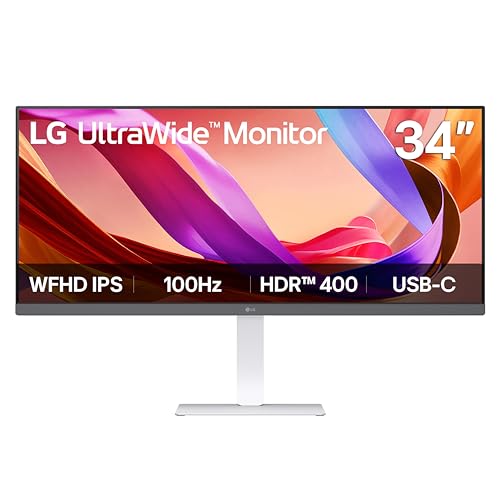
- 34-inch 21:9 IPS ultrawide
- 100Hz with DisplayHDR 400
- USB-C, DisplayPort, and HDMI
Best For: Everyday multitaskers who want extra width in a compact setup
Balanced Workhorse

- 34-inch 21:9 curved WQHD
- 120Hz with FreeSync Premium
- USB-C with 65W power delivery
Best For: Professionals needing a versatile ultrawide for work and editing
High-Resolution Productivity Hub
Samsung ViewFinity S8 37" 4K UHD

- 37-inch 4K UHD workspace
- USB-C with 90W charging
- Built-in KVM with split-screen options
Best For: Business users wanting a sharp 4K dock-and-work monitor
UltraWide Workhorse
LG 34" Curved Ultrawide for Productivity

- 3440 x 1440 ultrawide panel for multiple windows
- Picture-by-Picture supports two input sources
- USB-C offers up to 65W charging
Best For: Remote work and clean USB-C laptop docking
Budget Dual-Task Display
Dell 24 Compact 144Hz IPS Monitor

- 24-inch IPS panel with wide viewing angles
- 144Hz refresh and 1ms MPRT for smooth motion
- Two HDMI ports and thin bezels
Best For: Small desks and simple dual-monitor work setups
Panoramic Productivity Hub
Samsung 49" Dual QHD Ultrawide

- 49-inch 32:9 curved screen with Dual QHD
- USB-C dock supports up to 90W charging
- Includes HDMI, DisplayPort, USB, and Ethernet
Best For: Power users who want a single-screen dual-monitor feel
Ultra-Wide Multitasking Pick
Samsung 34" ViewFinity S50GC Ultra-WQHD

- 21:9 Ultra-WQHD screen expands workspace
- PBP and PIP support two simultaneous sources
- Eye care features help during long work sessions
Best For: People who want a wide single-screen setup for side-by-side productivity
Adjustable Productivity Pick

- QHD resolution adds room for multitasking
- Fully adjustable stand improves comfort
- Built-in speakers reduce desk clutter
Best For: Users who want a flexible 27-inch monitor for work and light entertainment
Budget-Friendly Curved Option
Samsung 27" Essential S3 Curved

- Curved 1800R panel feels more immersive
- 100Hz refresh keeps motion smoother
- TÜV-certified eye comfort helps long sessions
Best For: Shoppers who want a simple curved display for everyday tasks
Executive Productivity Pick – Dell UltraSharp U4924DW 49" Curved DQHD
Dell UltraSharp U4924DW 49" Dual Quad HD (DQHD) Curved Screen Edge WLED LCD Monitor - 32:9,Black
Check Price On AmazonIf you’re shopping for a computer monitor for multitasking, this 49-inch Dell UltraSharp is built for keeping multiple windows visible at once. The 32:9 curved DQHD panel, 5120 x 1440 resolution, and USB-C connectivity make it a strong fit for demanding desk setups where screen real estate matters most.
Best For: Power users who want a single extra-wide screen for spreadsheets, side-by-side apps, and business workflows.
Pros:
- 49-inch curved 32:9 display creates an expansive workspace for split-screen productivity.
- DQHD resolution delivers sharp detail across a wide 5120 x 1440 canvas.
- USB Type-C, HDMI, DisplayPort, Ethernet, and a built-in USB hub support a flexible desk setup.
- Height, swivel, and tilt adjustments help fine-tune viewing comfort.
Cons:
- Its very large size and 60.2-pound weight may be overkill for compact desks.
- 60Hz refresh rate is fine for work, but not aimed at fast-paced gaming.
This Dell stands out as a premium multitasking monitor when one screen needs to replace two. If your priority is maximizing usable workspace and keeping cables under control, it is one of the most practical ultrawide choices here.
Budget-Friendly Ultrawide – LG 34U530A-W 34" UltraWide WFHD
For a computer monitor for multitasking that keeps the format simple and the footprint manageable, the LG 34U530A-W delivers a 34-inch 21:9 workspace. Its 2560 x 1080 IPS panel, 100Hz refresh rate, and USB-C support make it a practical option for everyday work, browsing, and light creative use.
Best For: Users who want an affordable-feeling ultrawide layout for multiple open windows without moving to a huge display.
Pros:
- 21:9 ultrawide format gives you more horizontal room for side-by-side apps.
- 100Hz refresh rate keeps scrolling and motion smooth for daily use.
- USB Type-C, DisplayPort, and HDMI simplify laptop and desktop connections.
- Height, tilt, and swivel adjustments plus a compact stand help save desk space.
Cons:
- WFHD 2560 x 1080 resolution is less detailed than higher-resolution ultrawides.
- 34-inch size offers less total workspace than larger productivity-focused monitors.
This LG is a sensible multitasking monitor if you want ultrawide convenience without jumping to a massive panel. It balances extra screen width, modern connections, and an easy desk fit very well.
Balanced Workhorse – Dell 34 S3425DW Curved WQHD
The Dell S3425DW is a strong computer monitor for multitasking when you want more workspace, smoother motion, and better contrast than a basic office display. Its 34-inch 21:9 curved WQHD panel, 120Hz refresh rate, and single USB-C cable support make it a flexible fit for work and mixed-use setups.
Best For: Professionals who want a curved ultrawide for spreadsheets, photo/video editing, and general desktop productivity.
Pros:
- 3440 x 1440 resolution provides a sharp WQHD ultrawide workspace.
- 120Hz refresh rate and AMD FreeSync Premium keep motion smooth and responsive.
- USB-C with up to 65W power delivery helps reduce cable clutter.
- VA panel with 3000:1 contrast and 99% sRGB / 95% DCI-P3 supports vivid visuals.
Cons:
- 34-inch size offers less total room than a 49-inch super-ultrawide.
- 300 brightness is adequate, but not especially bright compared with some rivals.
This Dell hits a nice middle ground for multitasking: enough width for easy window management, but not so large that it overwhelms a standard desk. It is especially appealing if you also value strong contrast and color.
High-Resolution Productivity Hub – Samsung ViewFinity S8 37" 4K UHD
If your idea of a computer monitor for multitasking is a spacious, sharp desktop with room for several tools at once, the Samsung ViewFinity S8 is a compelling pick. The 37-inch 4K UHD panel, USB-C with up to 90W charging, built-in LAN, and KVM features are all aimed at efficient day-to-day productivity.
Best For: Users who want a large 4K work display with easy laptop docking and multitasking tools.
Pros:
- 37-inch 4K UHD display offers high pixel density and an expanded workspace.
- USB-C supports up to 90W charging plus data transfer for simple docking.
- Built-in KVM switch supports split screen, Picture-in-Picture, and Picture-by-Picture use.
- LAN port and ergonomic stand improve convenience for business setups.
Cons:
- 60Hz refresh rate is oriented toward productivity rather than fast motion.
- Its 37-inch 16:9 format is large, but not as wide for side-by-side app layouts as an ultrawide.
This Samsung is a smart option when you want high resolution, docking convenience, and built-in multitasking controls in one monitor. It is especially well suited to business users and anyone who needs crisp text and organized workflows.
UltraWide Workhorse – LG 34" Curved Ultrawide for Productivity
If you’re shopping for a computer monitor for multitasking, the LG 34WR55QK-B is built around screen space and flexibility. Its 34-inch 21:9 curved panel gives you room to keep multiple windows open at once, while OnScreen Control makes it easy to split the display or manage inputs from the desktop.
Best For: Remote work, office setups, and anyone who wants a wide single-screen workspace with USB-C convenience.
Pros:
- 3440 x 1440 UltraWide resolution provides a large canvas for side-by-side windows.
- Picture-by-Picture support lets you view content from two input sources at the same time.
- USB-C with up to 65W power delivery helps reduce cable clutter.
- Height and tilt adjustment make it easier to dial in a comfortable setup.
Cons:
- At 34 inches, it is wide but still smaller than 49-inch super-ultrawide alternatives.
- 5ms response time and 100Hz refresh are practical for work, but not aimed at competitive gaming.
For multitaskers who want a balanced ultrawide, this LG combines useful workspace features with a clean connection set. It is a strong fit if you want one monitor to handle spreadsheets, documents, and laptop docking without overcomplicating the desk.
Budget Dual-Task Display – Dell 24 Compact 144Hz IPS Monitor
The Dell SE2426H is a straightforward computer monitor for multitasking when you want a compact, affordable screen for daily work and general use. Its 24-inch IPS panel and 178-degree viewing angles keep content consistent, while the 144Hz refresh rate makes scrolling and motion feel smooth.
Best For: Smaller desks, basic office work, and users who want a simple second monitor with smoother motion.
Pros:
- IPS technology provides solid color consistency across wide viewing angles.
- 144Hz refresh rate and 1ms MPRT help keep movement smooth.
- Ultra-thin bezels are helpful for dual-monitor setups.
- Two HDMI ports add flexible connectivity for a compact monitor.
Cons:
- 1080p on a 24-inch display offers less workspace than ultrawide or higher-resolution options.
- Limited to tilt adjustment, so ergonomics are basic.
This Dell makes sense if you need a simple, dependable display rather than a space-maximizing centerpiece. For multitasking on a budget, it works best as a clean secondary screen or a no-fuss primary monitor for everyday business tasks.
Panoramic Productivity Hub – Samsung 49" Dual QHD Ultrawide
For a computer monitor for multitasking that aims to replace two displays, the Samsung 49-inch curved ultrawide stands out. Its 32:9 Dual QHD panel gives you a huge panoramic workspace, and the built-in USB-C dock helps keep laptops, peripherals, and power connected through one hub.
Best For: Power users, business workstations, and anyone who wants a single screen to handle multiple apps across a very wide desktop.
Pros:
- 49-inch 32:9 curved display creates an expansive workspace for side-by-side tasks.
- USB-C with up to 90W charging can simplify laptop docking.
- DisplayPort, two HDMI inputs, USB, and Ethernet help centralize connections.
- 120Hz refresh rate and DisplayHDR 400 add smoother visuals and richer contrast.
Cons:
- Large physical size demands substantial desk space.
- May be more monitor than casual users need for basic productivity.
This Samsung is the most ambitious multitasking option here, especially if you want the feel of dual monitors without a bezel gap. It is a strong match for heavy workflows, docking needs, and users who prioritize maximum screen real estate.
Ultra-Wide Multitasking Pick – Samsung 34" ViewFinity S50GC Ultra-WQHD
If you want a computer monitor for multitasking, this 34-inch Samsung gives you the extra horizontal space that makes split-screen work feel much less cramped. The 21:9 Ultra-WQHD layout is built to show more of your timeline, documents, and browser tabs at once, while PBP and PIP add flexibility when you need two sources on screen.
Best For: Users who want a wide 34-inch display for side-by-side work, content creation, or keeping multiple windows visible at once.
Pros:
- 21:9 Ultra-WQHD resolution maximizes screen real estate for easier multitasking.
- PBP and PIP support two simultaneous sources, useful for comparing projects or monitoring one task while working on another.
- HDR10 and 100Hz refresh rate add better image depth and smoother motion for work and entertainment.
- Eye Saver Mode, Flicker Free, and the ambient light sensor help reduce eye strain during long sessions.
Cons:
- 34-inch ultrawide screens need more desk space than a standard 27-inch monitor.
- 300 cd/m² brightness is solid, but not especially high for very bright rooms.
- Best experience depends on software and workflow that can actually use the wider layout.
Overall, this Samsung is a strong choice if your priority is fitting more work on one screen without jumping to a dual-monitor setup. It blends practical multitasking features with eye-comfort tools and a smooth 100Hz panel, making it a useful all-day desktop upgrade.
Adjustable Productivity Pick – Dell 27 Plus QHD 144Hz
This Dell is a practical computer monitor for multitasking if you want sharp QHD detail in a more compact 27-inch size. The 2560×1440 resolution gives you extra room for documents and apps, while the fully adjustable stand makes it easier to set up a comfortable work position for long days at the desk.
Best For: Office users, students, and hybrid workers who want a balanced 27-inch monitor with ergonomic adjustment and clean QHD clarity.
Pros:
- QHD resolution offers more usable space than standard 1080p for everyday multitasking.
- Height, tilt, pivot, and swivel adjustability make it easy to match your workspace.
- 144Hz refresh rate and 1ms MPRT provide smooth motion for work and occasional gaming.
- Built-in dual 3W speakers reduce the need for external audio hardware.
Cons:
- 27-inch 16:9 format is less expansive for side-by-side windows than an ultrawide monitor.
- Response time is listed as 8 milliseconds in the details, which may matter to fast-paced users.
- Only one HDMI port is listed, so input flexibility is more limited than on some alternatives.
As a computer monitor for multitasking, this Dell focuses on the basics that matter most: clear resolution, ergonomic comfort, and smooth everyday performance. It’s a smart pick if you prefer a standard-size monitor that still feels productive and versatile.
Budget-Friendly Curved Option – Samsung 27" Essential S3 Curved
If you’re looking for a computer monitor for multitasking on a simpler budget, this 27-inch Samsung keeps the experience straightforward. Its curved 1800R screen aims to feel more immersive and reduce peripheral distraction, while the 100Hz refresh rate helps everyday scrolling and video feel smoother.
Best For: Buyers who want an affordable curved monitor for general business use, media, and casual multitasking.
Pros:
- 1800R curved design creates a more immersive viewing experience.
- 100Hz refresh rate reduces lag and motion blur for smoother use.
- Advanced eye comfort technology is TÜV certified to help reduce strain.
- Multiple input options add flexibility for desktops, laptops, and consoles.
Cons:
- FHD 1080p resolution offers less workspace than QHD or ultrawide monitors.
- 250 cd/m² brightness is modest compared with brighter office displays.
- Single HDMI port may be limiting if you connect several devices often.
This Samsung makes sense if you want a monitor that is easy to live with rather than feature-heavy. For light multitasking, business tasks, and mixed use, the curved panel and eye-care features provide a comfortable, simple setup.
How We Picked the Best Computer Monitor for Multitasking
We prioritized screens that make it easier to keep multiple apps visible at once without constant resizing. That means favoring ultrawide and larger-format displays, strong panel quality, practical connectivity, and refresh rates that keep everyday work feeling smooth.
We also looked for models that balance workspace with comfort, including eye-care features, ergonomic support, and resolutions that stay sharp at larger sizes.
Quick Comparison: What Each Monitor Type Does Best
Ultrawide and super-ultrawide monitors are ideal if you want one large canvas for side-by-side windows, timelines, or split-screen workflows. 4K and high-resolution 37-inch class displays suit users who want crisp text and more vertical room. Standard 24- to 27-inch QHD and FHD models are better when desk space is limited or you want a more affordable productivity upgrade.
Key Buying Factors for a Computer Monitor for Multitasking
Screen Size and Aspect Ratio
A wider aspect ratio usually improves multitasking more than raw size alone. A 34-inch ultrawide can feel spacious for office work, while 49-inch dual-QHD models are best for users who want to replace a dual-monitor setup with a single panel.
Resolution and Sharpness
Higher resolution matters for reading text, viewing spreadsheets, and keeping multiple apps open without blur. For larger screens, WQHD, dual QHD, and 4K options help prevent interface scaling issues and keep content crisp.
Connectivity and Workflow Features
USB-C can simplify laptop docking with one cable for display, data, and power on some models. HDMI and DisplayPort remain important for desktop setups, while Picture-by-Picture or Picture-in-Picture modes are useful if you regularly connect two devices.
Comfort and Everyday Use
Look for eye-comfort modes, anti-glare finishes, and adjustable stands if you work long hours. If you multitask with fast-moving content or occasional gaming, a higher refresh rate can make the monitor feel more responsive.
Who Should Buy Which Computer Monitor for Multitasking?
If you want maximum workspace, choose a 49-inch dual-QHD ultrawide. If you need a balanced setup for office work and creative tasks, a 34-inch WQHD ultrawide is often the sweet spot. If you prefer sharper text and a more conventional layout, a 27-inch QHD or a 4K productivity monitor may be the better fit.
For budget-conscious shoppers, a 24-inch IPS display can still be a solid Computer Monitor for Multitasking when paired with good window management and a clean desktop layout.